
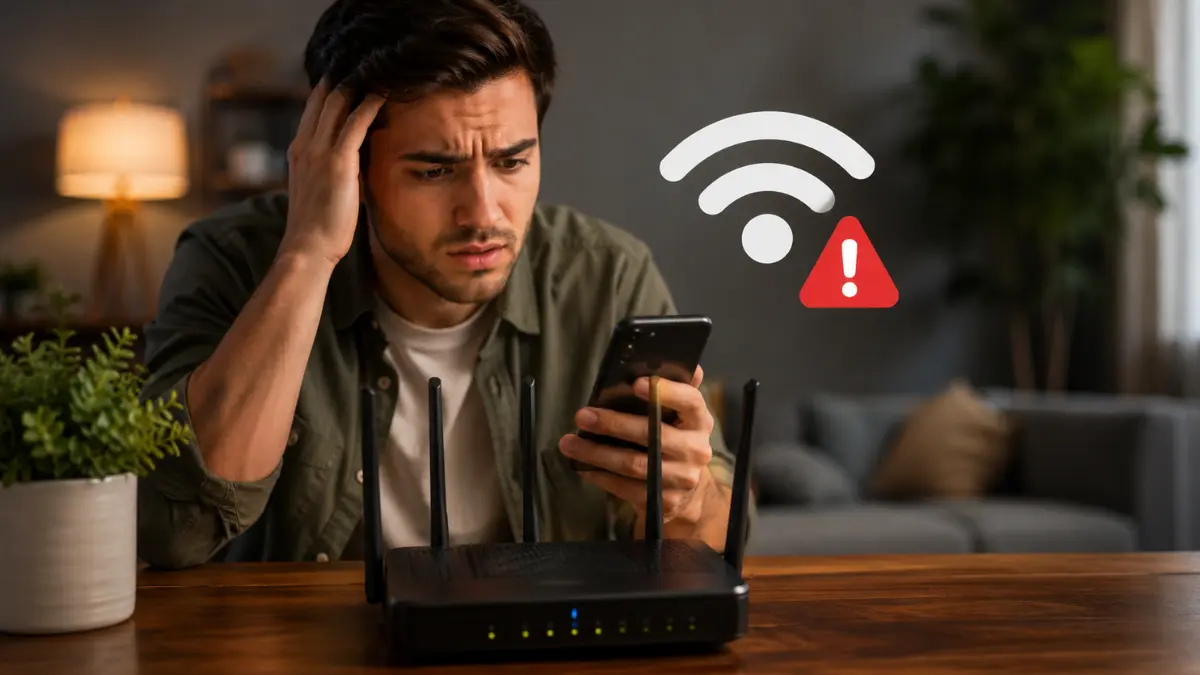

Your home Wi-Fi may keep dropping because the router is rebooting, nearby networks are crowding its wireless channel, a mesh point has a weak connection, two devices are assigning IP addresses, or one device has a faulty network setting. Checking whether every device disconnects or only one device fails will usually reveal where to begin.
Do not immediately buy a faster broadband plan or factory-reset the router. Neither action will fix local interference, an unstable power adapter, poor mesh placement or a laptop that keeps disabling its own wireless adapter.
Is Your Wi-Fi Dropping or Is the Internet Going Down?
People often describe every connection failure as “Wi-Fi dropping,” but the symptoms can point to different problems.
Watch what happens the next time the connection fails:
- The Wi-Fi network name disappears: The router may be restarting, overheating or experiencing a wireless fault.
- Wi-Fi stays connected but says “No Internet”: The modem, internet provider, DNS settings or local IP configuration may be responsible.
- Only one device disconnects: The problem probably exists inside that phone, laptop, television or wireless adapter.
- The connection fails only in one room: Weak signal, interference or poor mesh placement is more likely.
- Ethernet also stops working: The problem may sit with the modem, provider or incoming internet line rather than Wi-Fi.
This distinction prevents unnecessary changes. A router cannot repair an outage on the provider’s line, and an internet provider cannot normally fix an unstable laptop driver.
How Can You Find the Problem in Five Minutes?
Run these checks before changing advanced settings:
- Test the internet on a second device.
- Check whether the Wi-Fi network disappears completely.
- Watch the router and modem lights when the failure happens.
- Move close to the main router and test again.
- Restart the modem and router in the correct order.
- Test an Ethernet connection when possible.
When restarting separate devices, unplug both the modem and router. Reconnect the modem first and wait until it establishes its internet connection. Then reconnect the router and allow it to finish starting.
If Ethernet works but Wi-Fi does not, focus on the router’s wireless signal, channel settings or hardware. If Ethernet also fails, the modem, internet line or provider becomes more likely.
A stable connection becomes even more important when someone uses cloud-based AI tools for coding, document analysis or other long-running tasks. Developers exploring these services can also review the Claude Opus 5 API price and features to understand its usage costs, context capacity and main capabilities before choosing it for demanding online workflows.
1. Your Router Is Rebooting Without You Realising
A router that repeatedly reboots will disconnect every wireless device at the same time. The network name may disappear for a minute or two before returning after the router starts again.
Several hidden problems can trigger these restarts:
- excessive heat;
- an unstable electrical outlet;
- a damaged or incorrect power adapter;
- outdated router firmware;
- an enabled automatic reboot schedule;
- failing internal hardware.
Routers naturally become warm during use. Heat becomes a concern when the device sits inside a closed cabinet, behind a television, on fabric or directly beside another heat-producing device.
A replacement power adapter can also create instability when its voltage or current does not match the router’s requirements. TP-Link lists power problems, overheating, outdated firmware and an enabled Auto Reboot feature among the possible causes of repeated router restarts.
How can you tell whether the router is rebooting?
Watch its indicator lights when the connection drops. If several lights turn off and then return in their normal startup order, the router is probably rebooting.
Also note whether the problem happens at the same time each day. A scheduled reboot feature may be active even if nobody remembers enabling it.
How do you fix it?
Move the router to an open, ventilated location. Keep it away from direct sunlight, televisions, gaming consoles and other equipment that produces heat.
Use the original power adapter or a manufacturer-approved replacement with matching specifications. Test another wall outlet if the router continues restarting.
Log in to the router’s administration page or app and check for:
- firmware updates;
- scheduled reboot settings;
- system logs showing restarts;
- power-saving or maintenance schedules.
Do not install firmware intended for a different model or hardware version. Contact the manufacturer when the router continues restarting after power, heat and firmware checks.
2. Nearby Networks Are Crowding the Same Wi-Fi Channel
Every Wi-Fi network uses a radio channel. In an apartment building or crowded neighbourhood, several routers may compete on the same or overlapping channels.
This congestion does not always make the Wi-Fi network disappear. Instead, it may cause:
- brief interruptions;
- slow loading despite a strong signal;
- frozen video calls;
- gaming lag;
- buffering during busy evening hours;
- better performance late at night.
The 2.4 GHz band experiences congestion more often because its signal travels farther and it has fewer non-overlapping channel choices. Bluetooth devices and other equipment operating near 2.4 GHz can add more interference.
How can you test for channel congestion?
Compare the connection at different times. A network that performs well in the morning but becomes unstable every evening may be competing with nearby networks.
Many modern router apps include a Wi-Fi scan, channel analysis or network optimisation feature. Use that tool before manually selecting a channel.
How do you fix it?
Keep channel selection on Auto first. A modern router can examine the local wireless environment and choose a suitable channel. Apple recommends automatic channel selection rather than forcing one fixed channel in normal use.
Restarting the router may make it scan the area and choose a less crowded channel. Some routers perform this scan automatically without restarting.
If automatic selection continues performing poorly, test another channel through the router’s settings. Record the original setting before making changes.
For the 2.4 GHz band, a 20 MHz channel width can improve reliability in crowded areas. Apple recommends 20 MHz on 2.4 GHz to reduce performance and reliability problems near other networks and Bluetooth devices.
Use 5 GHz or 6 GHz for compatible devices located closer to the router. These bands usually offer higher speeds and face less congestion, but they do not pass through walls as effectively as 2.4 GHz.
Do not force unsupported regional channels. Channel availability differs by country, and some devices may fail to detect a network using an unsuitable setting.
3. A Weak Mesh Point or Duplicate Network Name Is Confusing Your Device
A properly configured mesh system should allow devices to move between Wi-Fi points without noticeable interruptions. Normal roaming is not itself a fault.
Problems appear when a mesh point has a weak connection to the main router or when an older router broadcasts the same network name outside the mesh system.
A mesh point may show a strong signal to a nearby phone while maintaining a poor backhaul connection to the main router. The phone appears fully connected, but all internet traffic must still pass through that weak link.
Another common problem occurs when an old router or extender uses the same Wi-Fi name and password as the new mesh network. Devices may switch between the independent networks because they appear identical.
Google warns that devices can switch back and forth and experience intermittent connections when a separate nearby router broadcasts the same Wi-Fi network name as a Nest or Google Wi-Fi system.
How can you identify the weak point?
Run the mesh test in the manufacturer’s app. A weak result means the point needs a better connection to the main router or another mesh node.
Test the internet near each point. When failures occur only near one node, its placement or backhaul is probably responsible.
Check whether an older router, extender or provider gateway is still broadcasting Wi-Fi. Different devices in the home may be connecting to different networks without making that obvious.
How do you fix it?
Move a weak mesh point closer to the main router or another strong node. Do not place the point directly inside the dead zone. It needs to receive a stable signal before it can extend one.
Google recommends moving a weak point closer to the primary Wi-Fi router and running the mesh test again.
Keep mesh points in open positions and away from thick concrete walls, metal cabinets, large mirrors and major appliances.
Disable Wi-Fi on an unused older router or give it a clearly different network name while testing. A wired Ethernet backhaul can improve stability when the mesh system supports it.
Do not add more nodes automatically. Too many closely placed access points can create unnecessary roaming decisions without improving coverage.
4. Two Devices Are Assigning IP Addresses
Most home networks should have only one device assigning local IP addresses through DHCP.
Problems can occur when the internet provider’s gateway and a second router both run DHCP. The two devices may assign conflicting addresses or place connected equipment on separate local networks.
This problem can make a device appear connected to Wi-Fi while showing no internet access. It can also cause printers, smart televisions, security cameras and other local devices to become unreachable.
Apple recommends enabling DHCP only on the device acting as the network’s DHCP server. It warns that multiple DHCP servers can create address conflicts that prevent devices from accessing the internet or network resources.
How can you tell whether two devices are routing?
Look at the equipment connected to the internet line.
You may have two routing devices when:
- the provider’s gateway broadcasts one Wi-Fi network;
- a separate router or mesh system broadcasts another;
- the second router connects to a LAN port on the provider gateway;
- both devices have their own DHCP, firewall and network settings.
Double NAT can also exist in this setup because both devices may translate network addresses. Double NAT does not normally cause the Wi-Fi signal itself to drop, but it can affect gaming, port forwarding, remote access and some network services.
How do you fix it?
The network should normally have one main router managing DHCP and NAT.
One option is to place the provider’s gateway in bridge or modem-only mode and allow the newer router or mesh system to manage the network.
Another option is to place the second router in access-point mode. The provider’s gateway then remains responsible for routing and IP-address assignments.
Router settings vary widely. Do not disable DHCP or enable bridge mode without knowing which device must remain responsible for the network.
Contact the internet provider when its gateway settings are locked or when television, telephone or other provider services depend on the supplied equipment.
5. One Device Has a Driver or Power-Saving Problem
When every other device remains online, the home router is unlikely to be the main cause.
The affected device may have:
- an outdated wireless driver;
- an aggressive power-saving setting;
- a corrupted saved-network profile;
- a problem with one frequency band;
- an incompatible security setting;
- a VPN or filtering app interfering with traffic.
Windows can allow the operating system to turn off a wireless adapter to save power. This may cause repeated disconnections after sleep or while the laptop runs on battery.
How can you confirm that one device is responsible?
Test the same network on another phone, computer or television. When the second device works normally, focus on the device that keeps disconnecting.
Move the affected device close to the router. If it still drops with a strong signal, distance is not the main problem.
Try connecting the device to another Wi-Fi network or a mobile hotspot. Continued failures on multiple networks point more strongly toward the device.
How do you fix it?
Start by forgetting the saved Wi-Fi network and reconnecting with the password. Then restart the device and install available operating-system updates.
On a Windows computer:
- Open Device Manager.
- Expand Network adapters.
- Select the wireless adapter.
- Update the driver or download the correct driver from the computer manufacturer.
- Check the Power Management tab when available.
- Clear Allow the computer to turn off this device to save power.
Microsoft includes adapter power management, driver updates, forgetting the network and network reset among its Wi-Fi troubleshooting steps. It recommends treating a full network reset as a later option because the reset removes network adapters and stored settings.
Also test the other Wi-Fi band. A distant device may stay connected more reliably on 2.4 GHz than on 5 GHz.
On a phone or tablet, update the operating system, forget the network and reconnect. Temporarily disable a VPN, private DNS service or network-filtering app while testing.
Use network reset only after simpler fixes fail. Record VPN, proxy and specialised network settings first.
When Should You Contact Your Internet Provider?
Contact the provider when:
- every device loses internet simultaneously;
- Wi-Fi remains visible but the modem shows a line or service fault;
- Ethernet and Wi-Fi both stop working;
- the provider gateway repeatedly restarts;
- failures occur at predictable times despite stable local equipment;
- bridge mode or gateway settings require provider access;
- the modem reports repeated connection or signal errors.
The provider can test the incoming line, check regional outages, examine modem signal levels, reprovision the connection or replace faulty provider-owned equipment.
It usually cannot fix local channel congestion, poor mesh placement or a laptop driver problem.
Consider replacing the router when it continues rebooting with proper ventilation and the correct power adapter, no longer receives firmware or security updates, or remains unstable after controlled troubleshooting.
A faster internet plan will not repair local Wi-Fi interference, conflicting DHCP servers or faulty hardware. Identifying whether the failure begins with one device, the wireless network or the incoming internet connection is the fastest route to the correct fix.

4 thoughts on “5 Hidden Reasons Your Home Wi-Fi Keeps Dropping”